Tired of Windows Vista slowness on my souped-up Dell XPS laptop, it was time I at least dual-booted into Linux. So I went ahead and downloaded a copy of Ubuntu to setup my computer.
To my delight, installing Ubuntu was a breeze! Though there was some back tracking I needed to do, this guide will help you get it setup in one shot. Once setup, everything on the laptop works - as if it is out of the box. This includes function keys, the mute/eject buttons and wireless.
You may face trouble with some applications though - be forewarned!
1. Make space for Ubuntu:
Shrink the volume size in Vista, so you can install Ubuntu
1b: Backup your data (Yes - ALWAYS play it safe :-) this will most likely go through just fine - but you want a backup for that hard disk crash you never planned for, anyway!
2. Write an Ubuntu Jaunty CD. You can try using Wubi - which is a windows Ubuntu installer. But I went the traditional way - this works just fine.
3. Boot into the CD (you might need to change boot sequence so your computer looks at the cdrom first)
4. Go through the partition steps and install Ubuntu into the free partition size you will see available.
Make sure you don't assign all of it to Ubuntu - otherwise you'll have trouble using Vista, or your install will fail.
5. Let ubuntu go ahead and install itself. I'd suggest giving it at least 20GB (I gave it over 100GB :-p
6. Now Ubuntu won't be able to connect to wireless just yet (I have the default Broadcom wireless card).
So connect to an LAN cable and go to System > Administration > Update System
7. Go ahead and install all the updates (there were about 140MB of updates when I ran it).
8. Restart your computer, and presto: you have ubuntu working!
You might need to take a moment to get the wireless setup - by entering your wireless settings.
Showing posts with label vista. Show all posts
Showing posts with label vista. Show all posts
Saturday, August 22, 2009

Friday, May 29, 2009
HTC Touch Diamond Sync Issue with Vista
When I upgraded my HTC Touch Diamond ROM (available here), I had trouble sync-ing with Windows Vista. I first managed to overcome it, but on reinstalling vista (for some other reasons), I faced the same issues again.
Here's a step-by-step guide to getting your HTC Touch Diamond to sync with Vista.
1. With your HTC Touch Diamond connected to your computer, go to Control Panel > Switch to Classic View > Device Manager


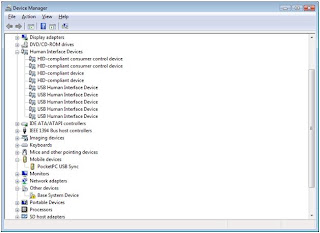
2. Right click PocketPC USB Sync and select 'Uninstall'
3. Once this is uninstalled, go to Control Panel > Programs and Features

4. You should see Windows Mobile Device Center. Uninstall it.

5. Now unplug you HTC Touch Diamond, and plug it back in. Everything should get reinstalled properly, and you should be good.
This is the screen you should see:

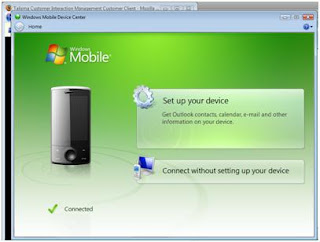
Go ahead and Set up your device.
Hope this helps!
Here's a step-by-step guide to getting your HTC Touch Diamond to sync with Vista.
1. With your HTC Touch Diamond connected to your computer, go to Control Panel > Switch to Classic View > Device Manager

2. Right click PocketPC USB Sync and select 'Uninstall'
3. Once this is uninstalled, go to Control Panel > Programs and Features

4. You should see Windows Mobile Device Center. Uninstall it.
5. Now unplug you HTC Touch Diamond, and plug it back in. Everything should get reinstalled properly, and you should be good.
This is the screen you should see:

Go ahead and Set up your device.
Hope this helps!
Saturday, January 31, 2009
Activesync with Bluetooth
I've been trying to setup a bluetooth sync with my HTC Touch Diamond (Windows Mobile based) pda-phone, and my Windows Vista Home Premium (64-bit) OS.
Here's how I got it to work:
1. Go to settings > menu > bluetooth devices
2. Click 'Mode' and select 'Turn on Bluetooth' and 'Make this device visible to other devices'
3. Make sure bluetooth is turned on on your computer, and select 'Add new device' (I had to click on the bluetooth item in the system tray and then click 'Add' under 'Phones and Modems'
4. In the wizard that opens, select 'My device is set up and ready to be found' and click 'next'
5. Your computer will look for your pda/phone and should show it in the screen.
6. Select your phone, and click next. You will need to select a passkey - go ahead and set your own passkey
7. Your pda should now prompt you for the passkey - enter the same one.
8. Now your computer will show some installing happening, and finally should say 'your devices are ready to use'
9. On your pda, go to your bluetooth devices page, and check the services that are in place for the computer - make sure activesync service is selected
10. On your computer, under phones and modems, select your device and click 'properties'. In the services tab, activesync bluetooth service should be selected.
11. Now startup the 'sync center' on your computer.
12. from your pda, now open activesync, and select 'connect via bluetooth'
13. once the connection is established, select 'sync'.
That should do it!
Let me know how this turned out.
Here's how I got it to work:
1. Go to settings > menu > bluetooth devices
2. Click 'Mode' and select 'Turn on Bluetooth' and 'Make this device visible to other devices'
3. Make sure bluetooth is turned on on your computer, and select 'Add new device' (I had to click on the bluetooth item in the system tray and then click 'Add' under 'Phones and Modems'
4. In the wizard that opens, select 'My device is set up and ready to be found' and click 'next'
5. Your computer will look for your pda/phone and should show it in the screen.
6. Select your phone, and click next. You will need to select a passkey - go ahead and set your own passkey
7. Your pda should now prompt you for the passkey - enter the same one.
8. Now your computer will show some installing happening, and finally should say 'your devices are ready to use'
9. On your pda, go to your bluetooth devices page, and check the services that are in place for the computer - make sure activesync service is selected
10. On your computer, under phones and modems, select your device and click 'properties'. In the services tab, activesync bluetooth service should be selected.
11. Now startup the 'sync center' on your computer.
12. from your pda, now open activesync, and select 'connect via bluetooth'
13. once the connection is established, select 'sync'.
That should do it!
Let me know how this turned out.
Subscribe to:
Posts (Atom)

 Posts
Posts

